Step 1: Open the Unibox
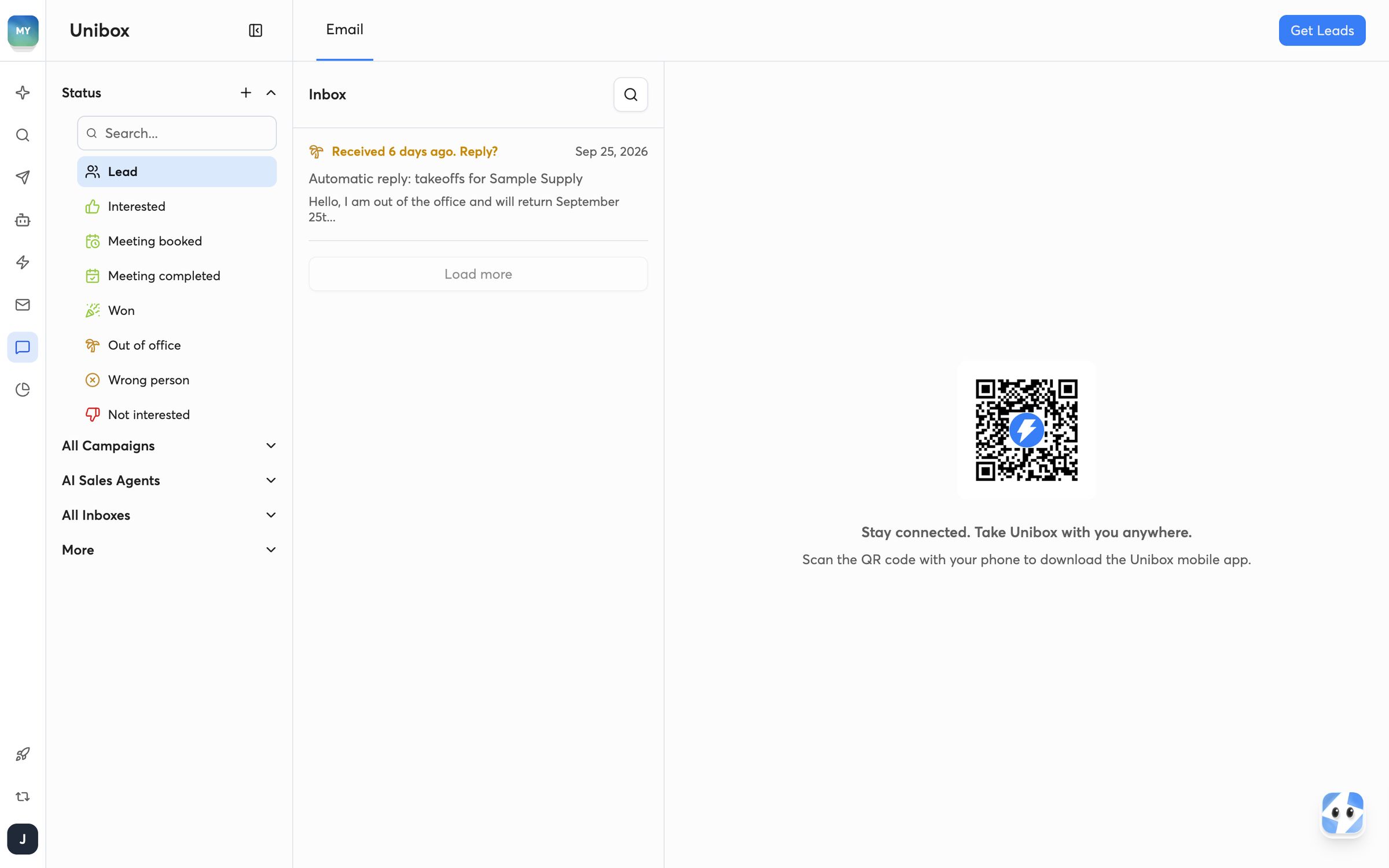
Open Instantly.
Replies to every mailbox land in the Unibox, the speech bubble in the left bar.
 Full size

No guides found
Guide 10 of 13 · Cold email process · Instantly
Updated Sep 30, 2026
Every reply to every mailbox lands in Instantly's Unibox, and a copy goes to the outreach core sheet. This guide shows how to find a reply, give it a status, and block a company that says no. An interested reply gets a phone call within 15 minutes.
The narrated video of this guide is in the library: https://campus.boldestimations.com/video/process-handle-replies.mp4
Screens recorded Sep 30, 2026 in Bold Estimation's Zapmail, Instantly and Google accounts. Names, email addresses and phone numbers of real people are replaced with placeholders or blurred, and typed examples are made up. If a screen looks a little different, the tool has updated: find the same label nearby.
Open Instantly.
Replies to every mailbox land in the Unibox, the speech bubble in the left bar.
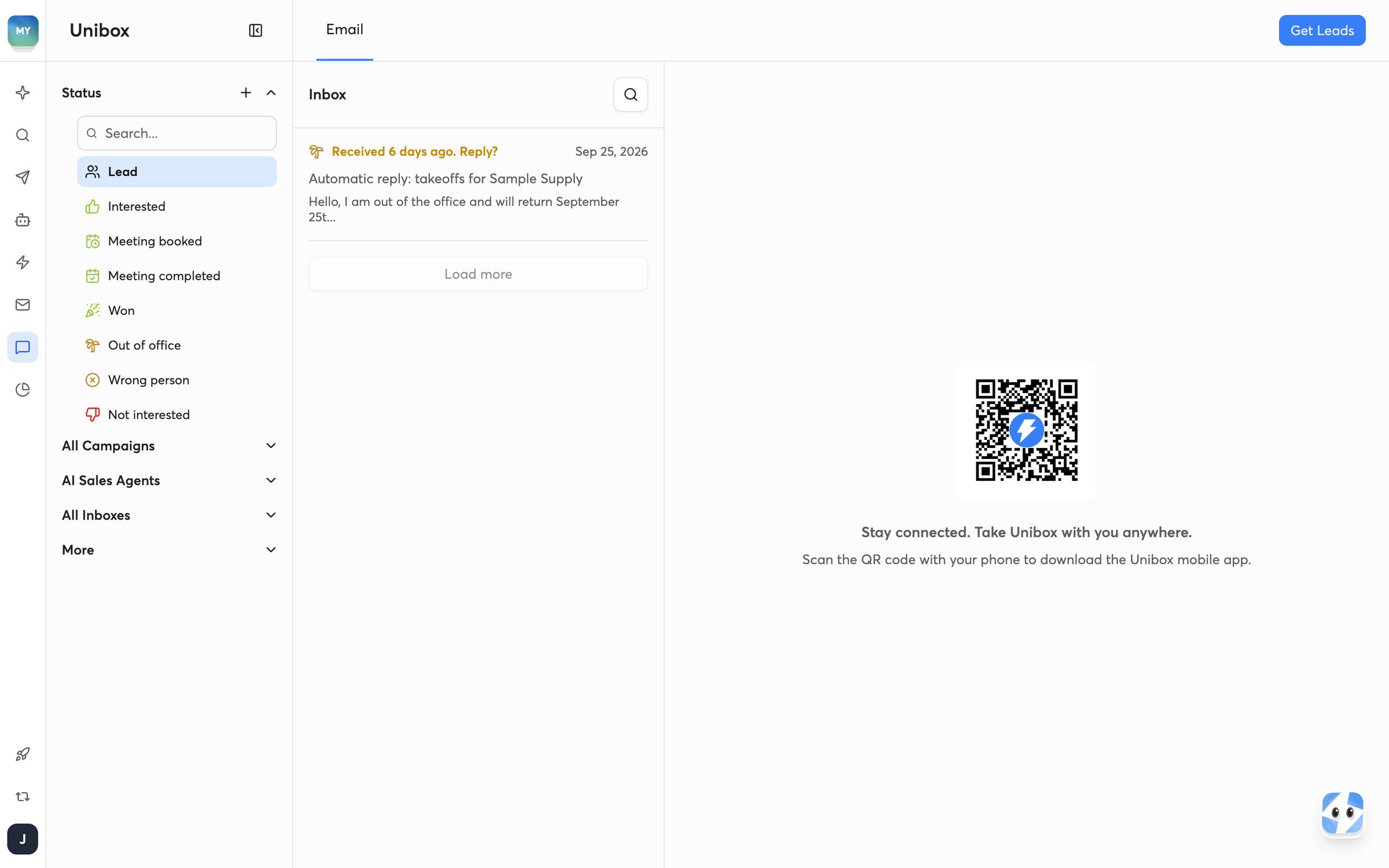
Full sizeOn the left are the reply statuses: Interested, Meeting booked, Meeting completed, Won, Out of office, Wrong person and Not interested. Click one to see only those replies.
 Full size
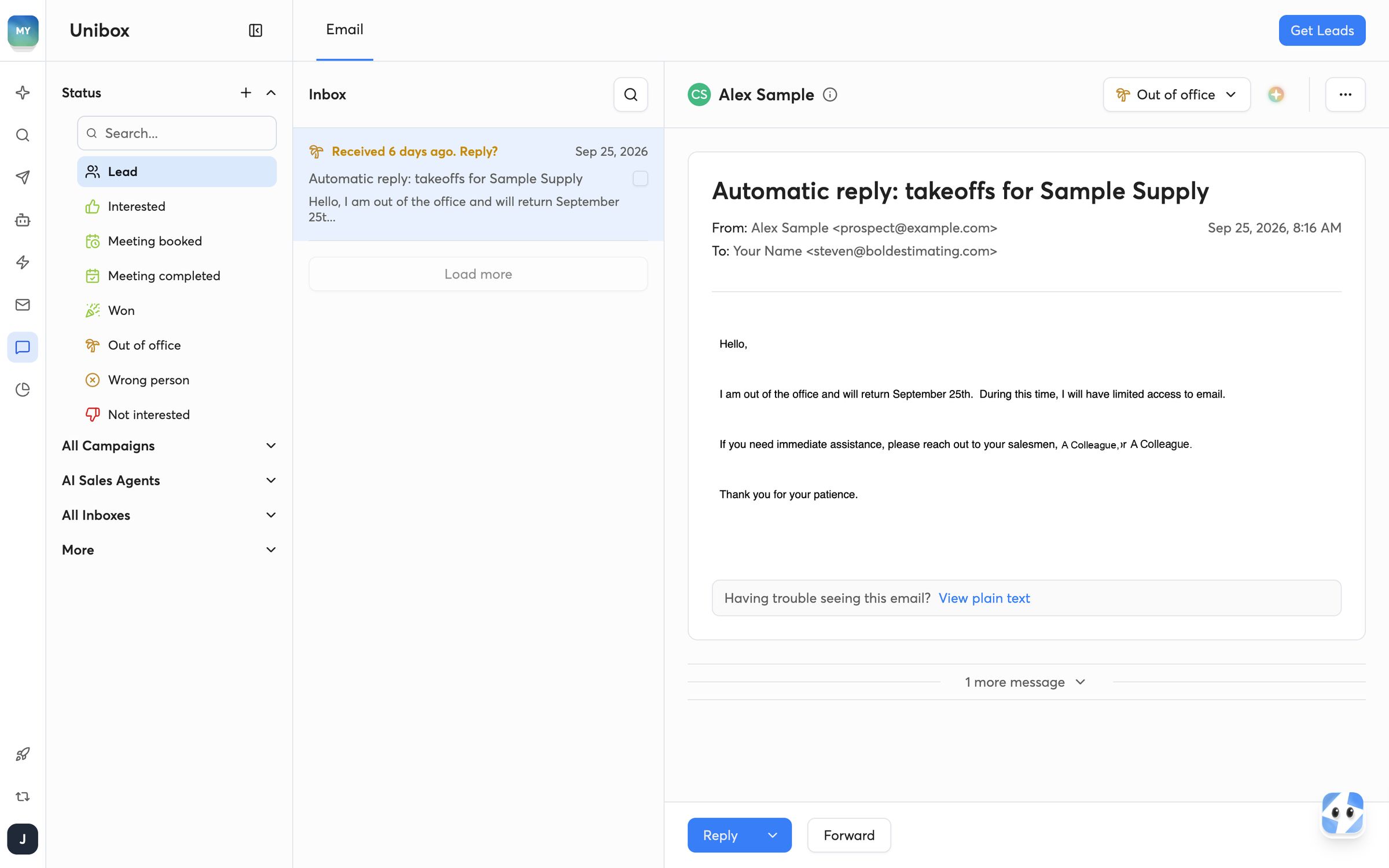
Click a reply to open it. This one is an automatic out of office reply. It needs nothing from you.
 Full size
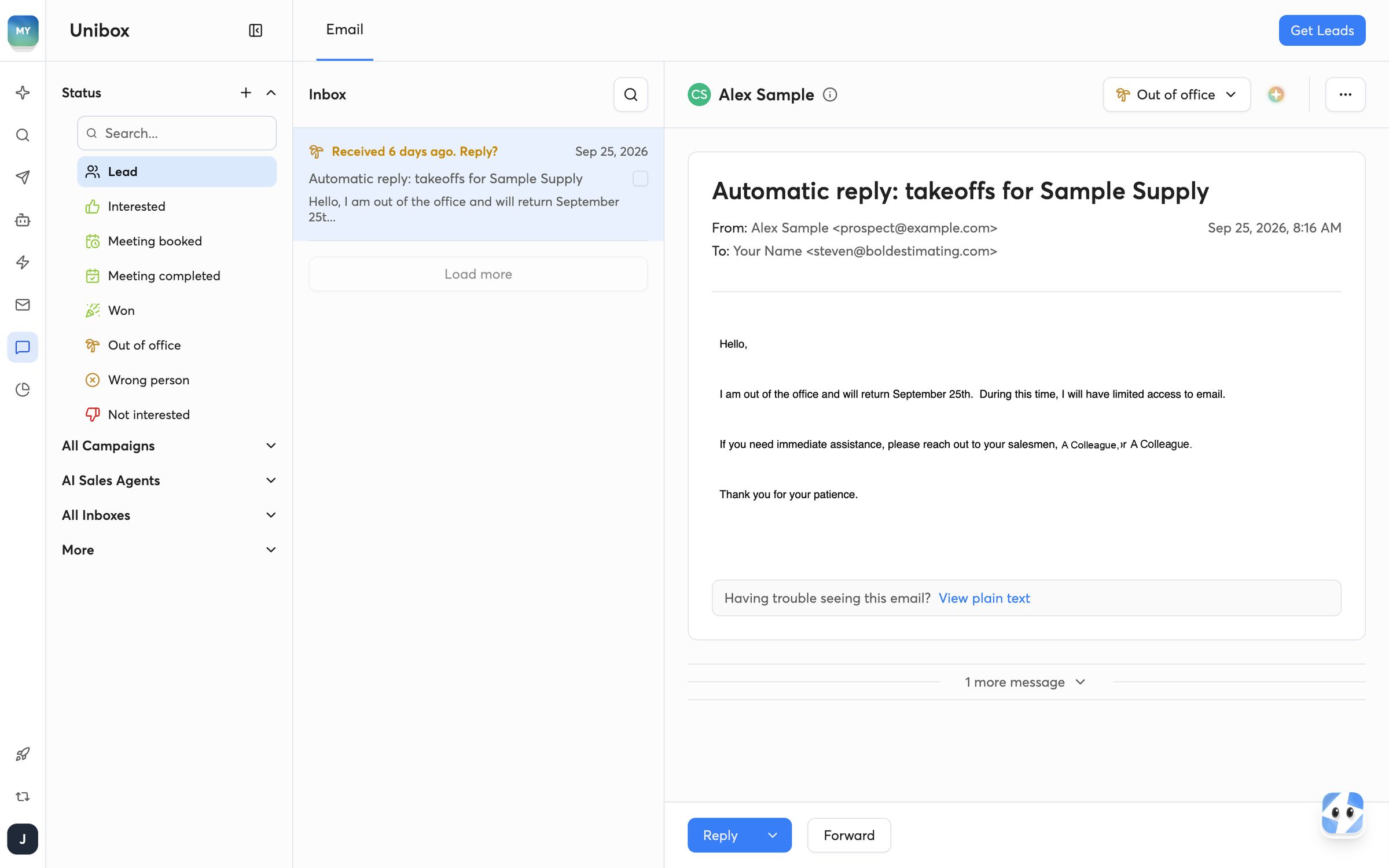
The status sits at the top right. Instantly guesses it; correct it on every real reply, so the numbers in the sheets stay right.
 Full size
Watch out. Call an interested reply within 15 minutes. The phone number is on its line in the Replies tab of the outreach core sheet. Answer every reply yourself, in your own words, and never send a bulk reply from the Unibox.
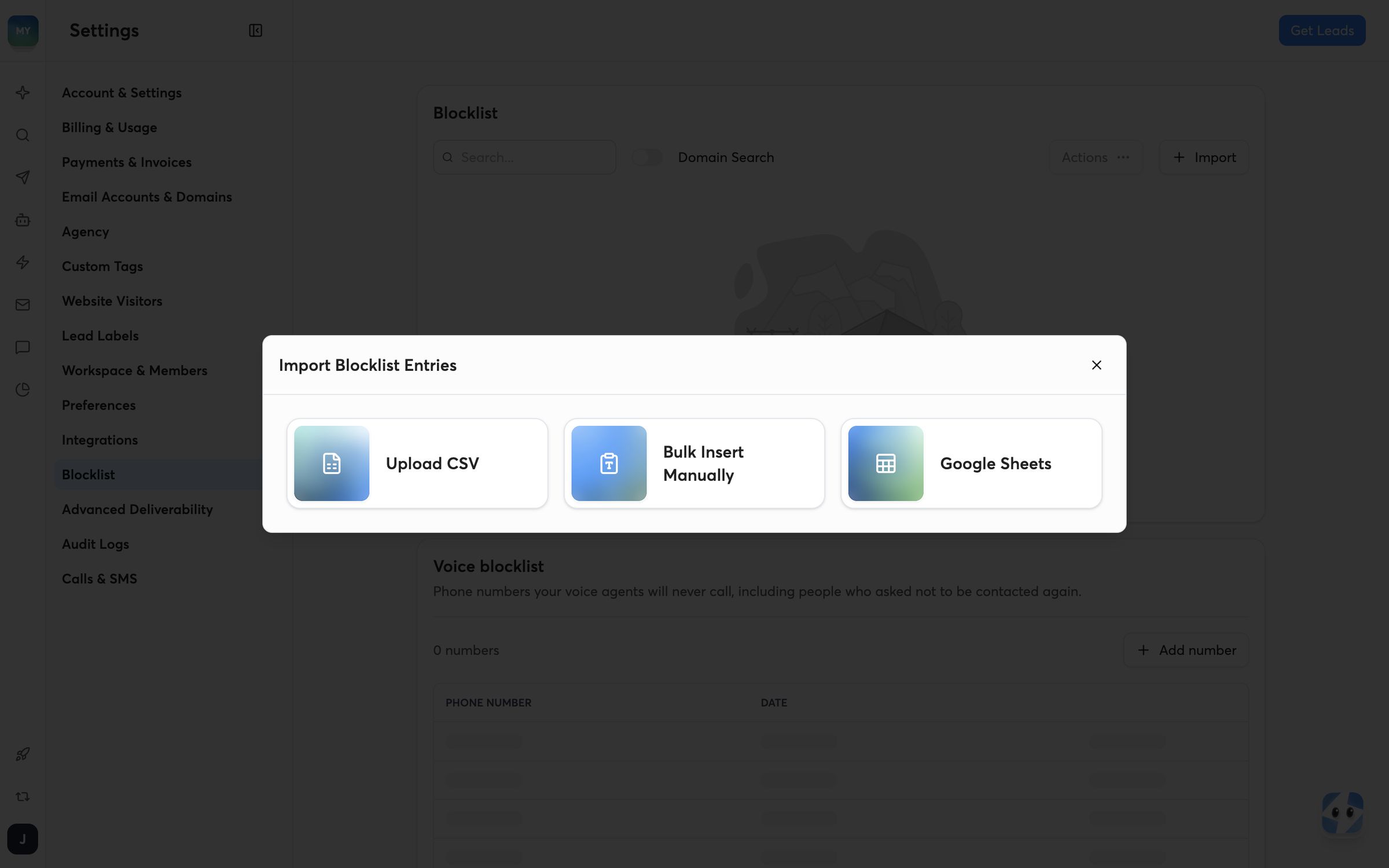
A clear no gets a short, polite thank you, and the company goes on the blocklist. Open Settings from your profile at the bottom left, then Blocklist.
Click Import, then Bulk Insert Manually, and type the company's domain.
Press Escape to leave without adding anything.
 Full size
Tip. Blocking the domain, like example.com, stops every address at that company. Also add the company to the Do not contact tab in the outreach core sheet (guide 12), so it never goes back on a list.
Not started